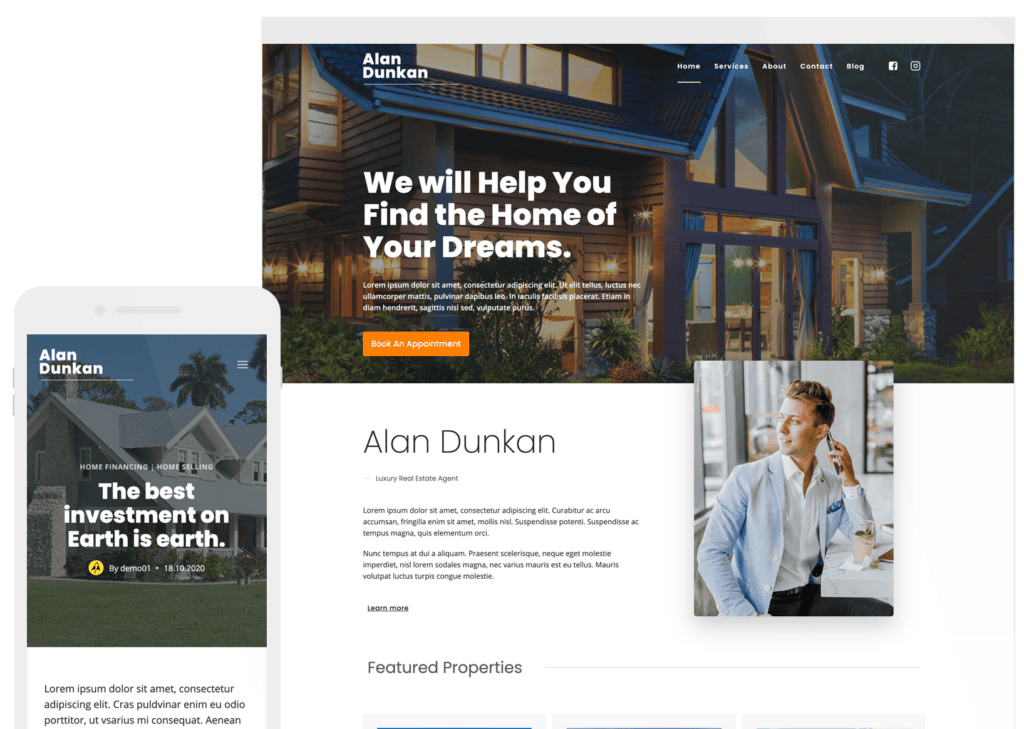
Creating the KT Gutenberg Blocks Demo Homepage
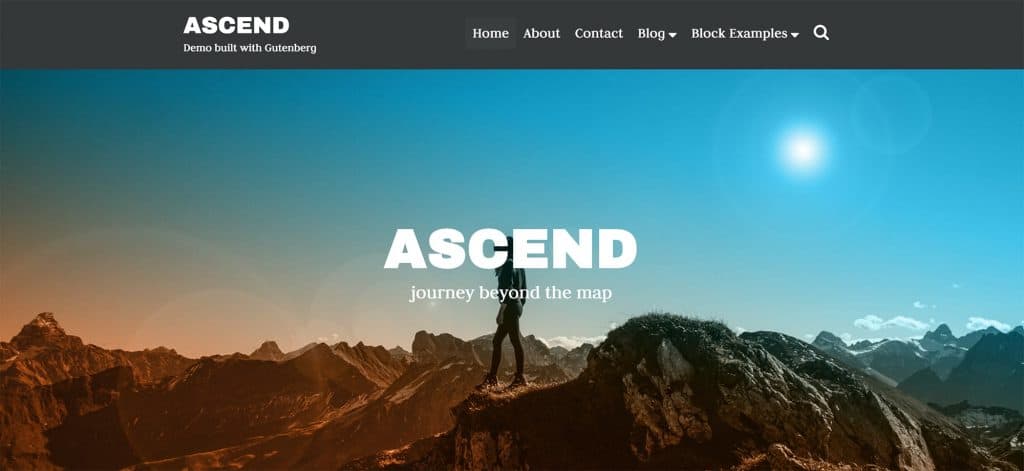
When re-creating the Kadence Themes Gutenberg Blocks demo homepage, you need to have the Kadence Blocks – Gutenberg Page Builder Toolkit plugin installed and activated. You can find documentation on that here.
Step 1: Create a New Page
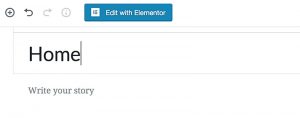
- Create a new page and call it “Home” (or whatever you like).
Step 2: Reading Settings
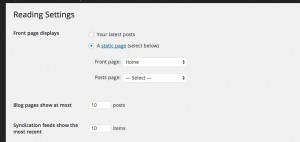
- Navigate to Settings > Reading and set your front page as a static page, then set your home page as the front page. *Note don’t set your posts page here. You don’t need to when using a Kadence theme.
Step 3: Enable Page Content
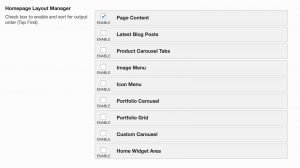
- Navigate to Theme Options > Home Layout and enable Page Content in the Homepage Layout Manager. *Note this setting will look different depending on the theme you’re using.
Step 4: Creating Your Page
- Navigate to the page you created in the beginning and choose to edit the page using the Gutenberg editor.
- Add a row layout block and set the number of columns to one. Then set the width to full and the alignment to the middle.
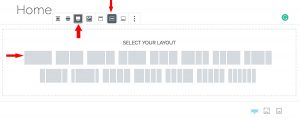
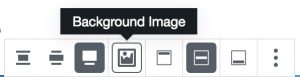
- Next, upload a background image for the row.
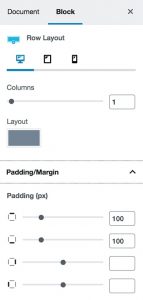
- On the right sidebar, open the Block tab and then open the Padding/Margin tab. Add 100px padding to the top and bottom of your row.
- Click the plus sign (add block) to add an Advanced Heading block and a Paragraph block to your row (this will set the title and tagline as seen below).

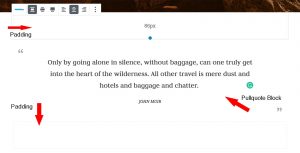
- Next, add a Spacer/Divider block and add 86px of padding. Then add a Pullquote Block. Then another Spacer/Divider block with the same amount of padding.
- Add another Row Layout Block with two columns. In the first column add an Image block, then in the second add two Heading blocks, a Paragraph block, and an Advanced Button block.
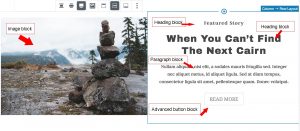
- Repeat this process for the next row, only reverse the order of blocks.
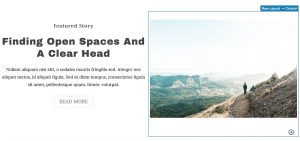
- Next, create a new row and add a Spacer/Divider block and set the height to 86 under Spacer Settings.

- Add a Row Layout block with three columns. In each column add an Image block, a Heading block, a Paragraph block, and an Advanced Button block.
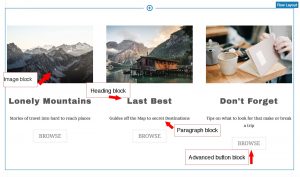
- As done previously, create a new row and add a Spacer/Divider block and set the height to 86 under Spacer Settings.
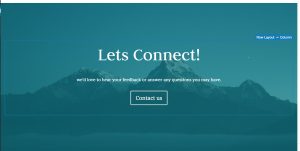
- Lastly, create a Row Layout block with one column and set the layout to full width.
- In the Block Options on the right column add 100px top and bottom padding and set a background image for your block.
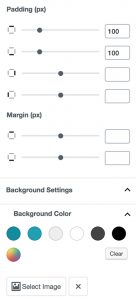
- Add two paragraph blocks and an advanced button block to your row.
Step 5: Creating a Footer
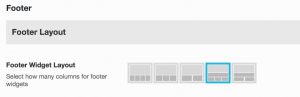
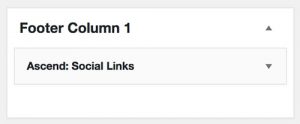
- From Theme Options > Footer, choose a layout then add a social links widget from Appearance > Widgets. *Note footer layout options will vary per theme.
Create Your Website With KadenceWP Today!