Creating a Gallery
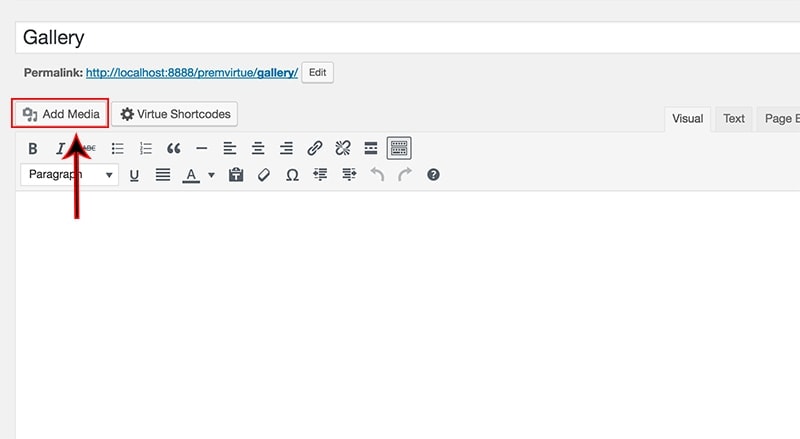
- From the visual editor of your edit page click the “Add Media” button.
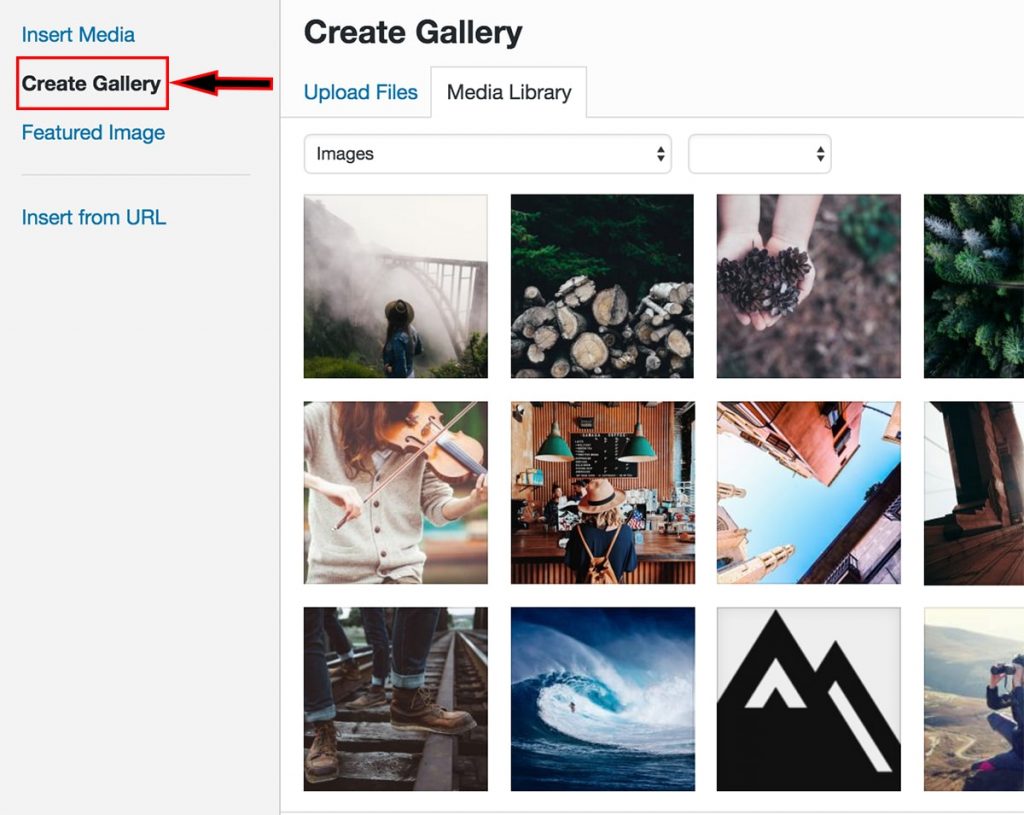
2. Click “Create Gallery” then either upload new files or choose images from your current media library.
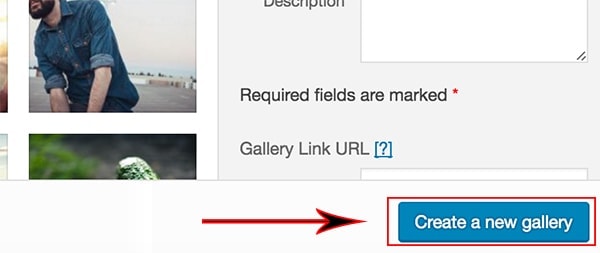
3. Once you have selected your images, click “Create a new gallery”.
4. Set captions for each of your images (optional).
5. Choose your gallery settings and your KT extra gallery settings.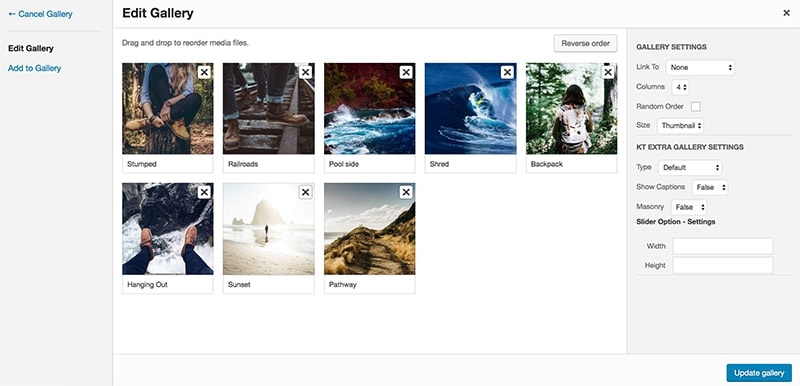
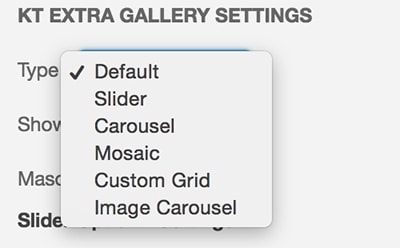
6. Select a Gallery Type:
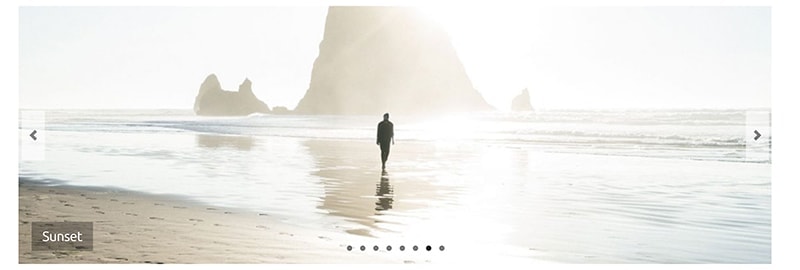
Slider example:
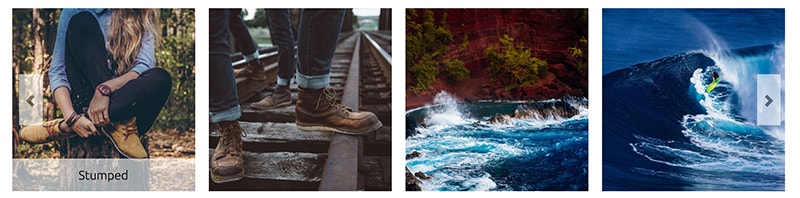
Carousel example:
Mosaic example:
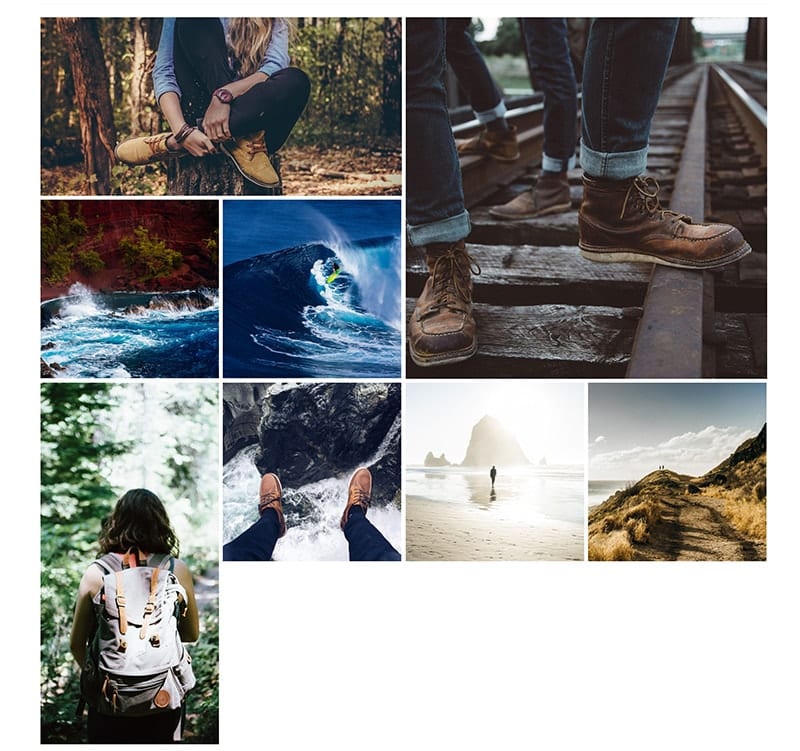
Custom Grid example:
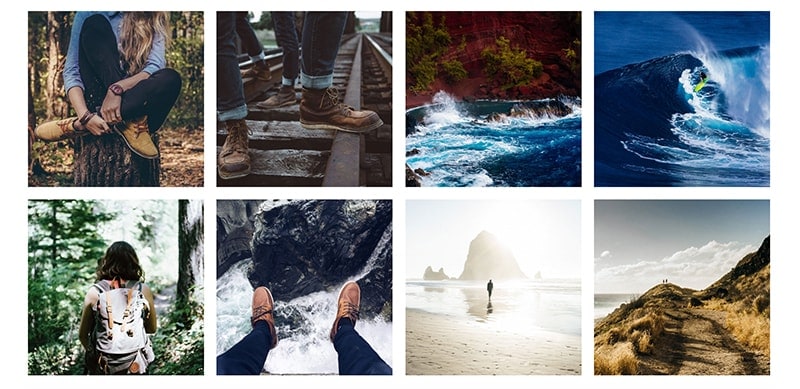
Image Carousel example:

7. Set a height and width for your images (optional).
8. Click “Insert gallery”.
Create Your Website With KadenceWP Today!