Manually Updating a Theme
Steps to manually updating a WordPress theme by Kadence Themes.
Step 1. Download the latest version of your premium theme from the my account page on Kadence Themes.
[hr style=”line” size=”1px”]
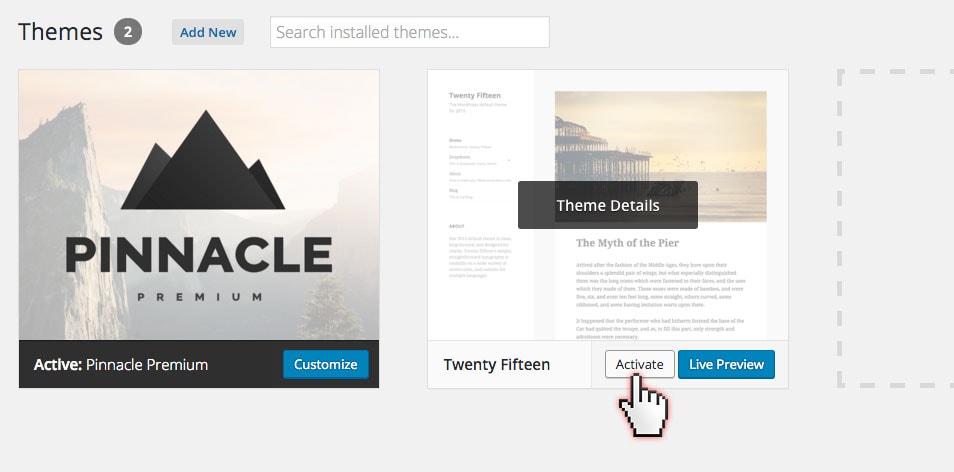
Step 2. From inside your site admin, navigate to the Appearance > Themes page and select a different theme to activate. Hover over the theme and click “Activate”.
(If you don’t have another theme to activate you can install one by clicking add new and installing the standard WordPress theme).
[hr style=”line” size=”1px”]
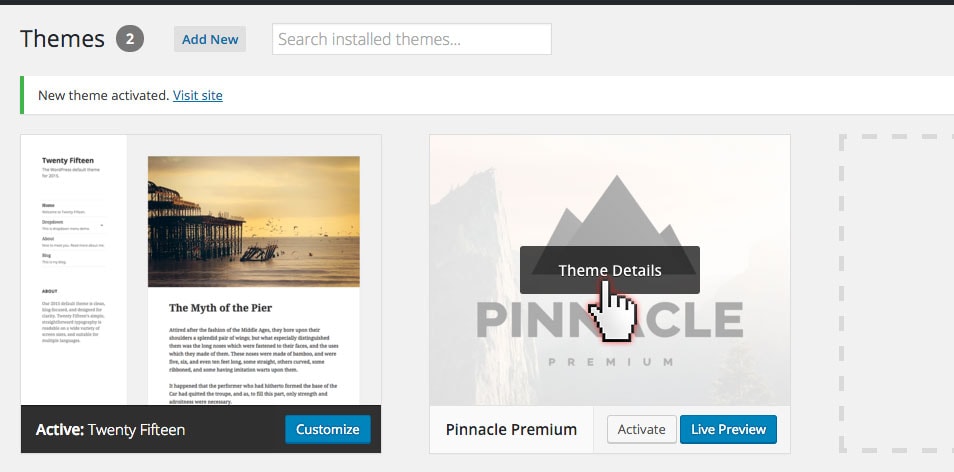
Step 3. Once the other theme is activated hover over the theme you are going to update and click on the “Theme Details”.
[hr style=”line” size=”1px”]
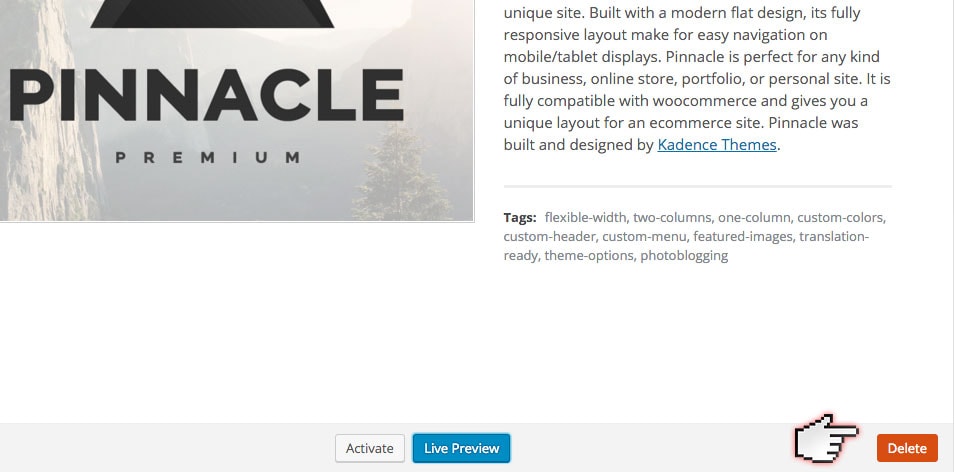
Step 4. After clicking on the Theme Details a popup of the themes details will show. In the bottom right corner of this popup click “Delete”.
(Please note that because your theme options are saved to the database and not in files, deleting the theme will not cause you to lose your theme settings)
[hr style=”line” size=”1px”]
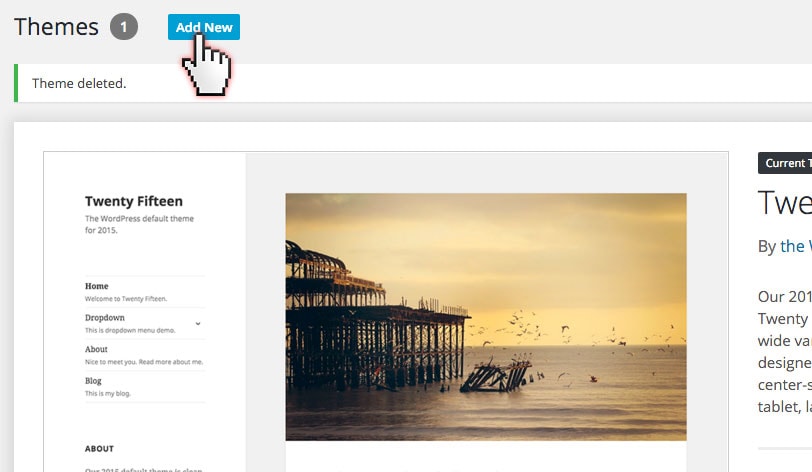
Step 5. Once the Theme is deleted you can click “Add New” in the top of the page.
[hr style=”line” size=”1px”]
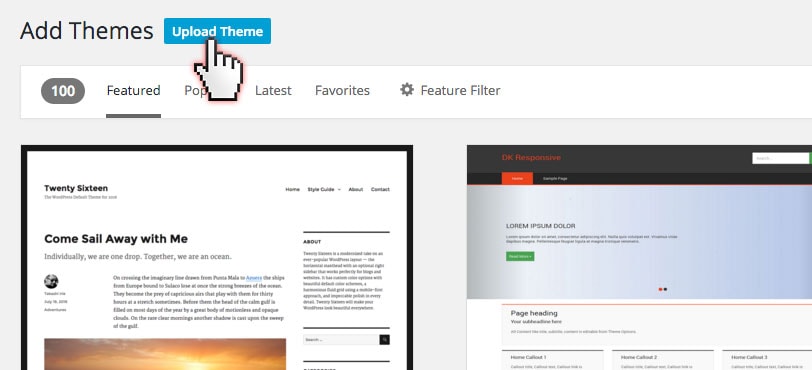
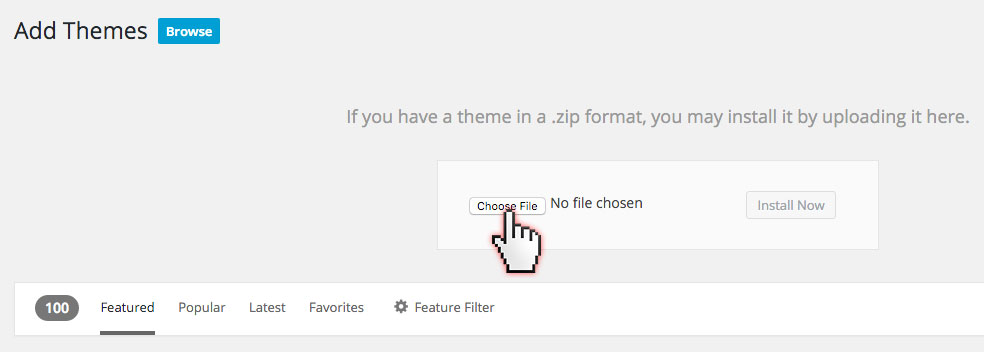
Step 6. On the add themes page you will see the “Upload Theme” button. Click that then browse for the theme file (the zip file you downloaded in step 1).
[hr style=”line” size=”1px”]
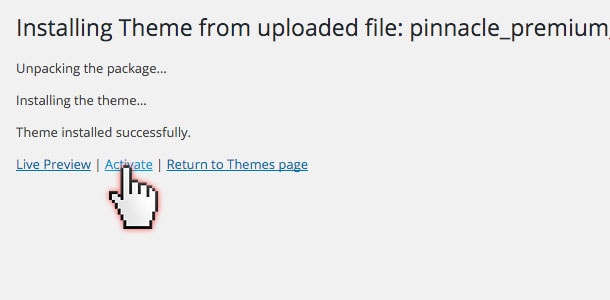
Step 7. Once the theme has uploaded you can click “activate” and you have successfully updated your theme to the latest version.
Create Your Website With KadenceWP Today!