Installing Woocommerce
- Login to your WordPress admin and go to Plugins >> Add New.
- Search for WooCommerce.
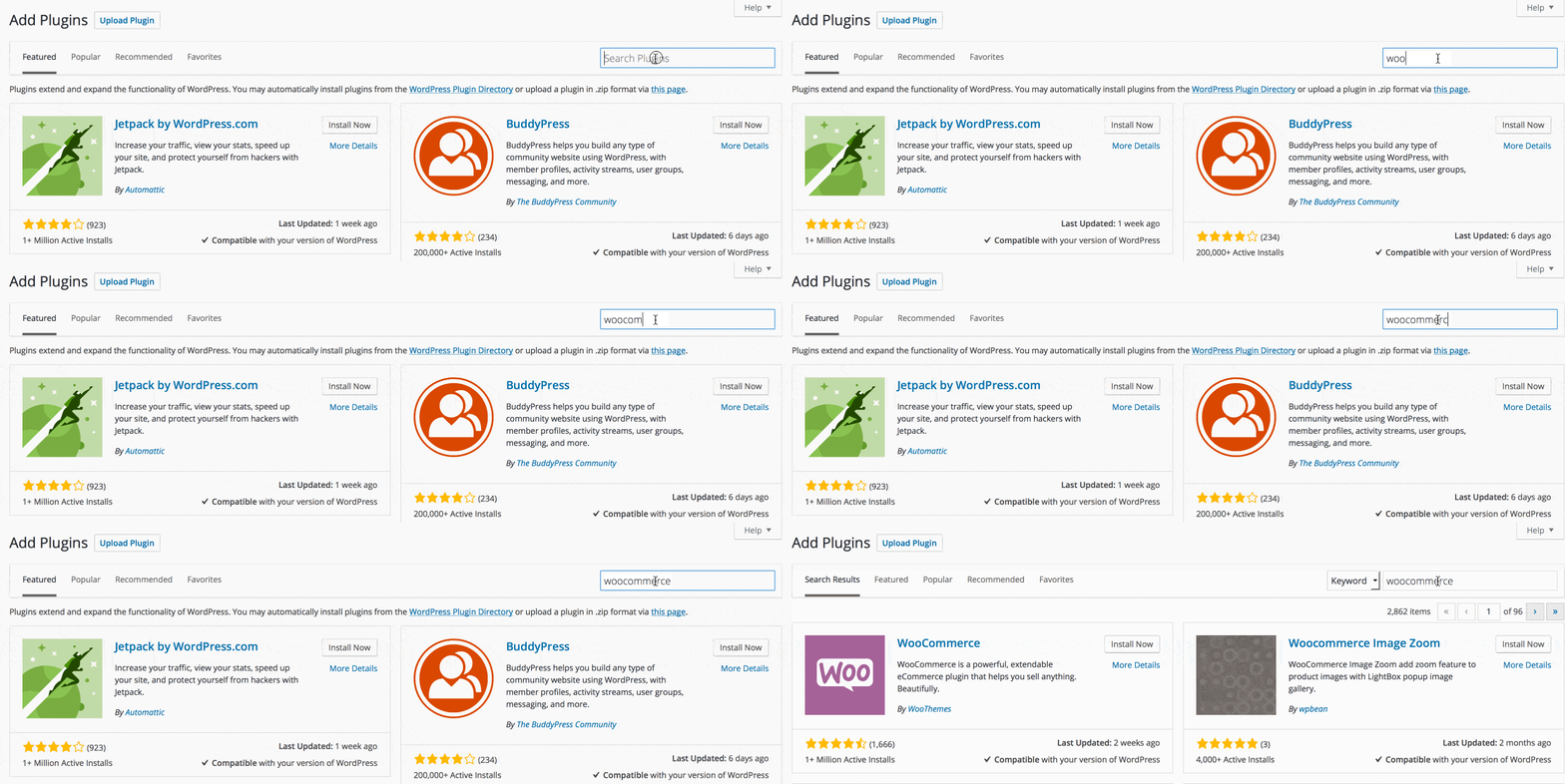
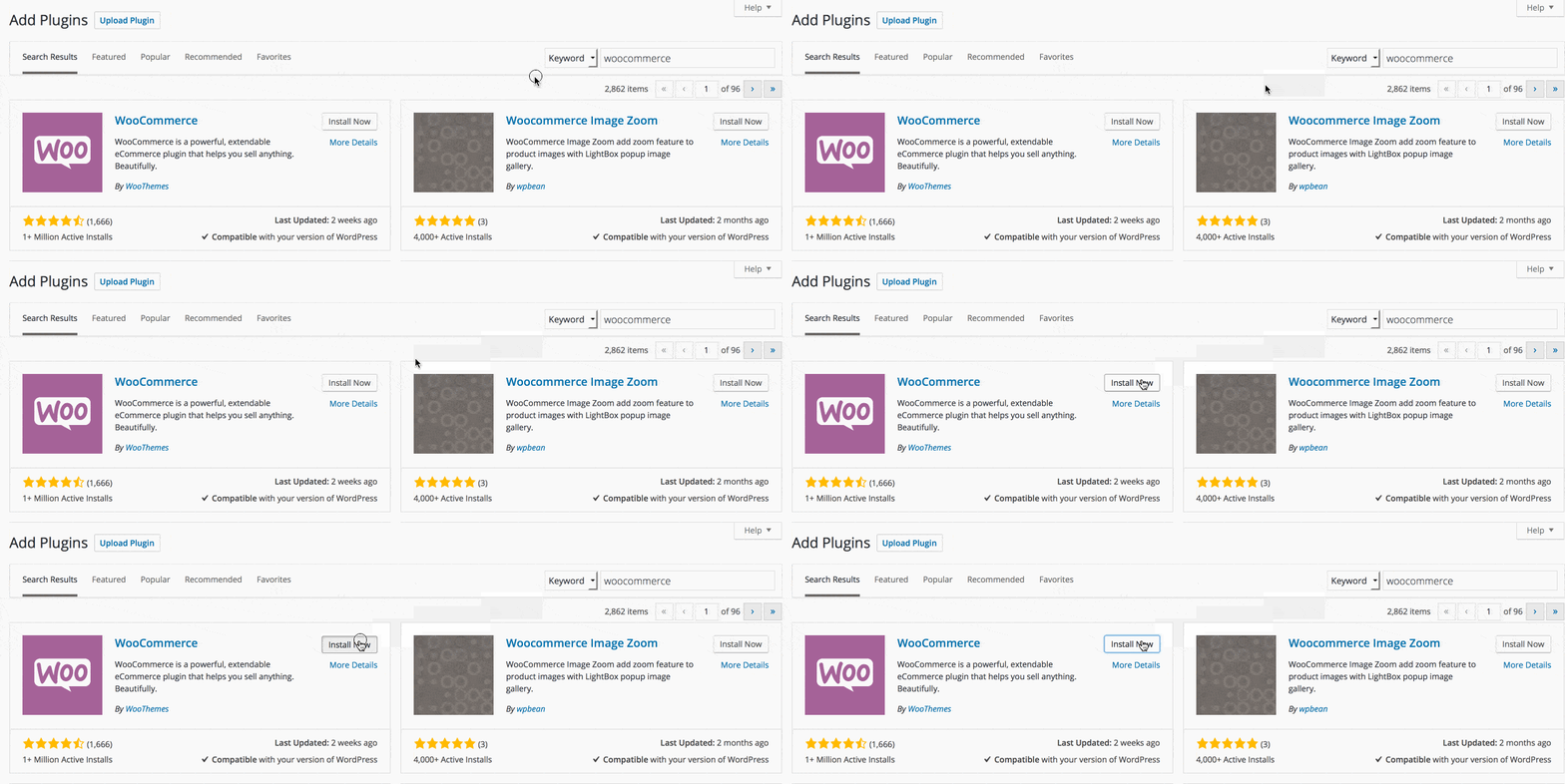
- Click the Install Now link.
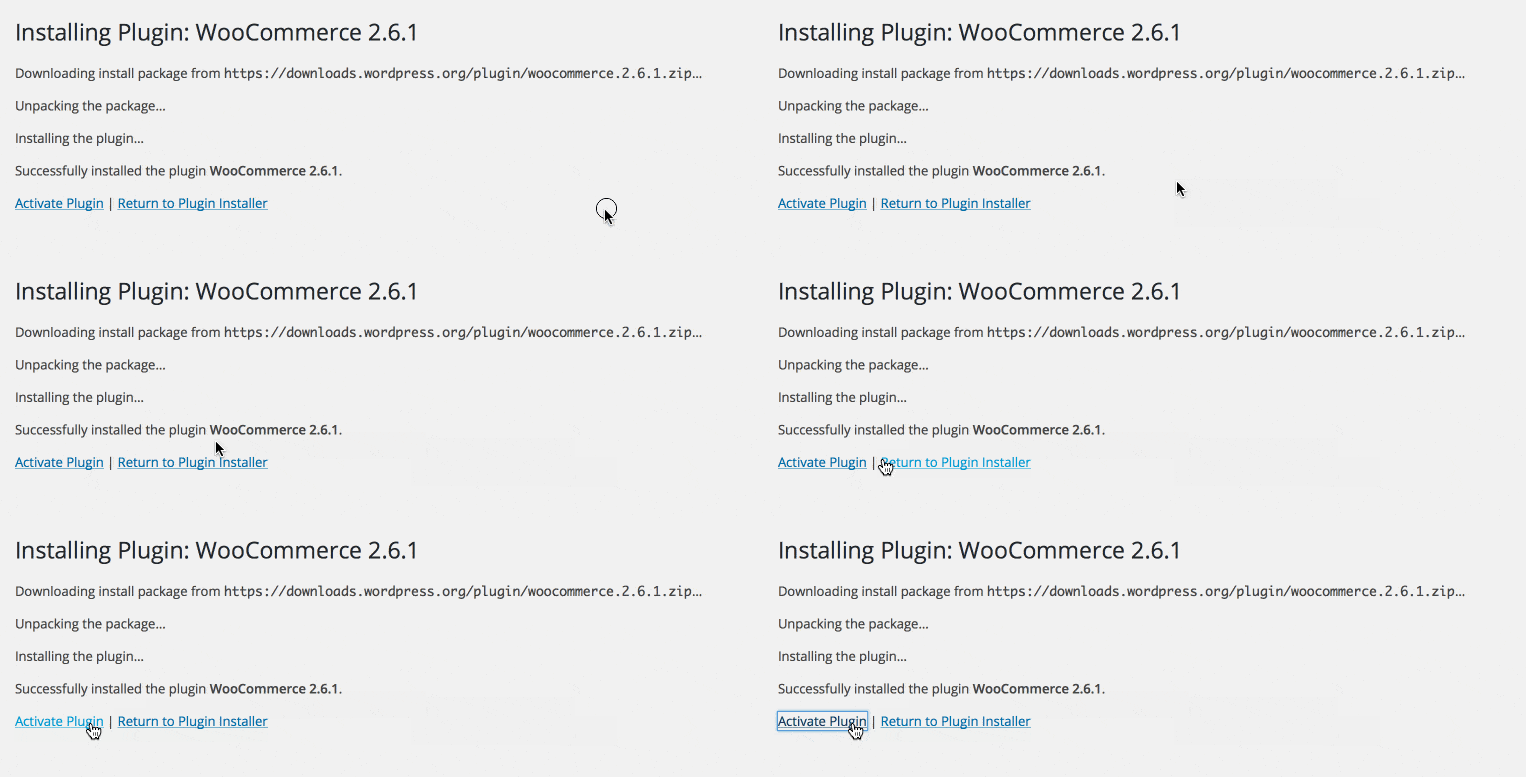
- Once installed, click the Activate Plugin link.
- Once activated, click Run the Setup Wizard.
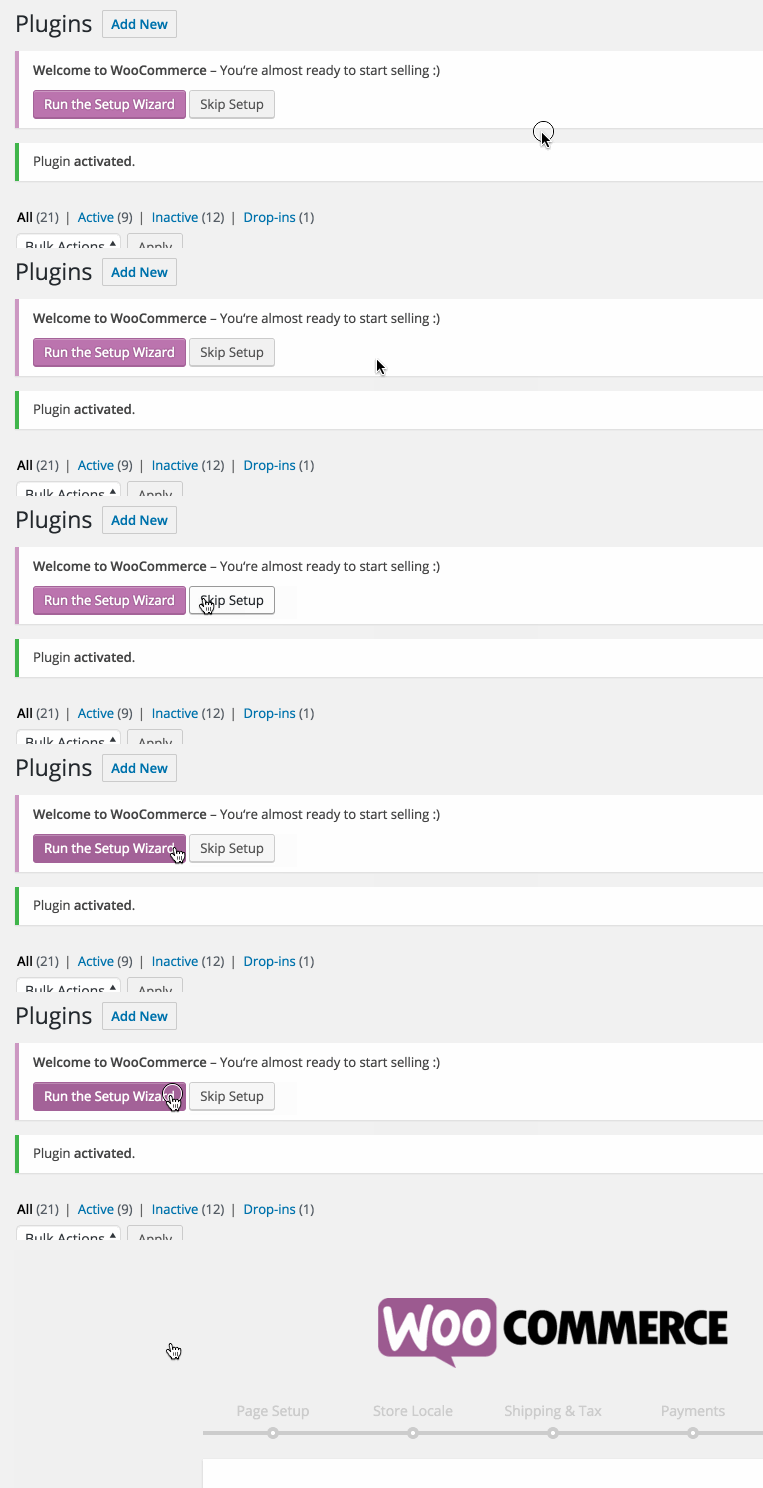
Now that WooCommerce is installed, let’s get all the settings up and running.
For your general settings, WooThemes has extensive documentation for WooCommerce here.
Installing Woocommerce Demo Content
[btn text=”Demo Content Help” tcolor=”#ffffff” link=”http://docs.woothemes.com/document/importing-woocommerce-dummy-data/” undefined=”pen” size=”large” font=”h1-family” icon=”icon-pencil3″ target=”true”]
Configuring Woocommerce Settings
[btn text=”Woocommerce Settings Help” tcolor=”#ffffff” link=”http://docs.woothemes.com/document/configuring-woocommerce-settings/” undefined=”bas” size=”large” font=”h1-family” icon=”icon-basket” target=”true”]
Help Adding Products:
[btn text=”Woocommerce Products Help” tcolor=”#ffffff” link=”http://docs.woothemes.com/document/managing-products/” undefined=”bag” size=”large” font=”h1-family” icon=”icon-bag2″ target=”true”]
Create Your Website With KadenceWP Today!